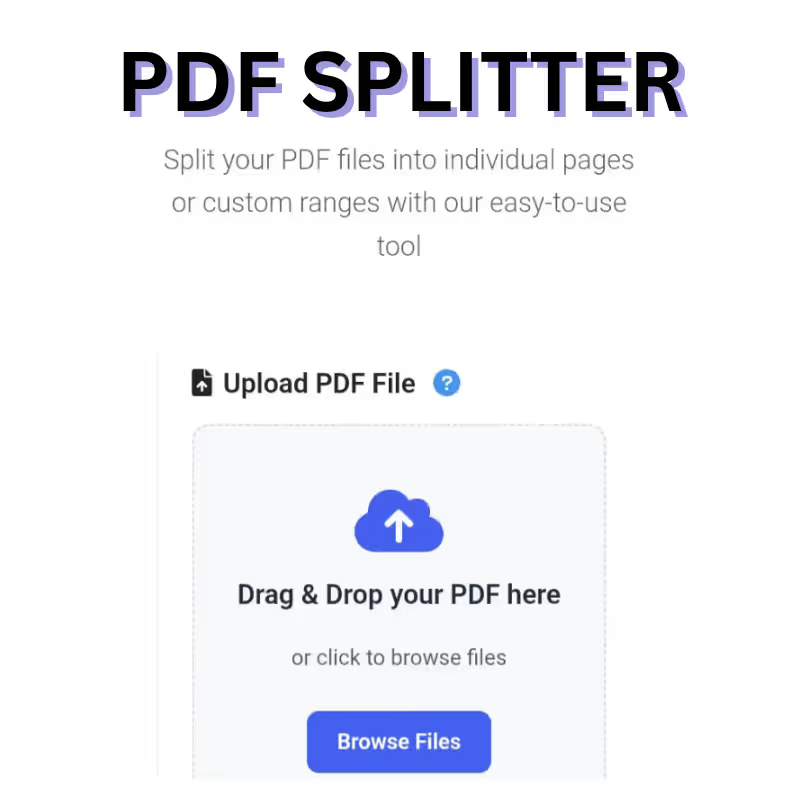
PDF Splitter Tool
Split your PDF files into individual pages or custom ranges with our easy-to-use tool
Upload PDF File
Drag & Drop your PDF here
or click to browse files
PDF Splitter Tool: Complete Documentation
Table of Contents
- Overview
- Key Features
- Technical Specifications
- User Guide
- Use Cases
- Troubleshooting
- Privacy & Security
- Browser Compatibility
- Future Enhancements
Overview
The PDF Splitter Tool is a comprehensive, client-side web application designed to efficiently split PDF documents into individual pages or custom page ranges. Built with modern web technologies, this tool provides a seamless, secure, and intuitive experience for users who need to extract specific pages from PDF files without compromising document quality or privacy.
Unlike traditional PDF splitting solutions that require software installation or server uploads, this tool operates entirely within your web browser. All processing happens locally on your device, ensuring complete privacy and security for your documents. The application features a modern, responsive interface that works flawlessly across desktop, tablet, and mobile devices.
The tool leverages the powerful PDF-lib.js library for PDF manipulation and PDF.js for rendering page previews, providing professional-grade functionality in an accessible web interface. Whether you’re a student extracting lecture notes, a professional managing document workflows, or an individual organizing personal documents, this tool simplifies the process of PDF page extraction.
Key Features
1. Modern, Responsive User Interface
- Clean Design: Card-based layout with rounded corners, soft shadows, and smooth animations
- Mobile-First Approach: Fully responsive design that adapts to any screen size
- Premium Feel: Professional styling with consistent color schemes and typography
- Intuitive Navigation: Logical workflow from upload to download with clear visual cues
2. Advanced File Handling
- Drag & Drop Upload: Simple file selection with visual feedback during drag operations
- File Validation: Automatic checks for file type (PDF only) and size limits (50MB)
- File Information Display: Shows filename, size, and total page count upon upload
- Visual Feedback: Clear progress indicators and status messages throughout the process
3. Flexible Splitting Options
- Individual Page Extraction: Split each page into separate PDF files automatically
- Custom Range Selection: Specify exact page ranges using simple syntax (e.g., 1-3, 5, 7-9)
- Visual Page Selection: Click on page thumbnails to select/deselect specific pages
- Range Validation: Intelligent parsing and validation of custom page ranges with error prevention
4. Interactive Page Preview
- Thumbnail Generation: Automatic rendering of page previews using PDF.js
- Visual Selection: Click-to-select interface for choosing pages graphically
- Page Counter: Real-time display of selected page count
- Loading States: Smooth loading animations while generating previews
5. Client-Side Processing
- Zero Server Dependency: All processing occurs locally in the browser
- Privacy Guaranteed: Documents never leave your device
- No Registration Required: Instant access without sign-up forms
- Offline Capable: Works without internet connection after initial load
6. High-Quality Output
- Preserved Quality: Maintains original PDF quality and formatting
- Accurate Extraction: Precise page extraction without corruption
- File Size Optimization: Efficient processing maintains reasonable file sizes
7. Comprehensive Download Options
- Individual Downloads: Separate download buttons for each extracted page
- Bulk Export: Download all split pages as a single ZIP archive
- File Naming: Automatic naming convention (page_1.pdf, page_2.pdf, etc.)
- Size Information: Display of file sizes for each output document
8. Robust Error Handling
- Clear Error Messages: Descriptive feedback for invalid inputs or processing errors
- Validation Warnings: Preemptive alerts for out-of-range pages or invalid formats
- Graceful Recovery: Easy reset options and clear paths to correct errors
- User Guidance: Tooltips and help text throughout the interface
Technical Specifications
Core Technologies
- Frontend Framework: Vanilla JavaScript with modern ES6+ features
- PDF Processing: PDF-lib.js for document manipulation
- PDF Rendering: PDF.js for page preview generation
- Styling: Bootstrap 5 with custom CSS enhancements
- Archive Creation: JSZip for ZIP file generation
- File Handling: FileSaver.js for download functionality
Performance Characteristics
- Maximum File Size: 50MB per PDF document
- Processing Speed: Varies by document complexity and system capabilities
- Memory Usage: Optimized for typical web browser constraints
- Browser Support: Compatible with all modern browsers (Chrome, Firefox, Safari, Edge)
Security Features
- Client-Only Processing: No server communication or file storage
- Sandboxed Execution: Runs within browser security sandbox
- Temporary Storage: Uses browser memory with automatic cleanup
- No Tracking: Zero analytics or user tracking implemented
User Guide
Getting Started
Step 1: Access the Tool
Open the PDF Splitter Tool in your web browser. The application loads immediately without any installation requirements.
Step 2: Upload Your PDF
You have three methods to upload your PDF file:
- Drag & Drop: Simply drag your PDF file from your computer and drop it onto the upload area
- Click to Browse: Click the upload area or the “Browse Files” button to open your file explorer
- File Dialog: Use the traditional file selection dialog by clicking the upload area
The tool will automatically validate that your file is a PDF and under the 50MB size limit. If validation fails, clear error messages will guide you to correct the issue.
Step 3: Review File Information
Once uploaded, the tool displays:
- File name and size
- Total number of pages
- Visual page preview thumbnails
Take a moment to verify this information matches your expectations.
Choosing Split Method
Option A: Split All Pages Individually
- Select the “Split into individual pages” option
- This automatically selects all pages for extraction
- Each page will become a separate PDF file
- Ideal when you need to extract every page separately
Option B: Split Custom Page Ranges
- Select the “Split by custom page ranges” option
- Use one of these methods to specify pages:
Method 1: Text Input
- Enter page ranges in the text field using this syntax:
- Single pages:
5(extracts only page 5) - Page ranges:
1-3(extracts pages 1, 2, and 3) - Combinations:
1-3, 5, 7-9(extracts pages 1-3, 5, and 7-9) - Click “Validate Range” to verify and visually see selected pages
Method 2: Visual Selection
- Click directly on page thumbnails to select/deselect individual pages
- The selection counter updates in real-time
- Selected pages highlight with a blue border
Processing Your PDF
Step 1: Initiate Splitting
- Click the “Split PDF” button to begin processing
- Observe the progress bar showing real-time advancement
- A loading spinner indicates active processing
- Do not close the browser tab during processing
Step 2: Monitor Progress
- The progress bar fills from 0% to 100% as pages are processed
- Processing time depends on:
- Number of pages being extracted
- Complexity of PDF content
- Your device’s processing power
- Typical processing times range from a few seconds to a minute for large documents
Downloading Results
Individual File Downloads
- Each extracted page appears as a card in the results grid
- Cards display:
- PDF icon and page number
- File size of the extracted page
- Download button
- Click any download button to save that specific page
Bulk Download Option
- Use the “Download All as ZIP” button for convenience
- Creates a single ZIP archive containing all extracted pages
- File naming convention:
page_1.pdf,page_2.pdf, etc. - Ideal for organizing multiple extracted pages
Advanced Usage Tips
Efficient Range Selection
- Use hyphenated ranges for consecutive pages:
1-5instead of1,2,3,4,5 - Combine single pages and ranges:
1, 3-5, 8, 10-12 - The tool automatically sorts pages numerically, regardless of input order
Page Preview Optimization
- Thumbnails may take a moment to generate for large documents
- If thumbnails fail to load, page numbers still provide full functionality
- Use the visual selection for precise control over which pages to extract
File Management
- Downloaded files use the naming pattern:
page_[number].pdf - The ZIP archive is named
split_pages.zip - Organize downloads immediately to avoid confusion with multiple operations
Use Cases
Educational Applications
Students and Researchers
- Extract specific chapters from textbook PDFs
- Separate lecture slides for focused study
- Create custom reading packets from multiple sources
- Isolate reference pages from research papers
Educators and Administrators
- Split multi-class syllabi into individual class documents
- Extract assignment sheets from course materials
- Separate answer keys from question papers
- Create individualized reading materials for students
Professional Workflows
Business Professionals
- Extract specific contracts or agreements from multi-document PDFs
- Separate financial reports by section or department
- Isolate signed pages from complete document packages
- Create client-specific packages from master documents
Legal Sector
- Extract individual exhibits from legal bundles
- Separate case documents for different proceedings
- Isolate specific clauses from contract documents
- Create redacted versions by extracting non-sensitive pages
Healthcare
- Separate patient records by visit or department
- Extract specific test results from comprehensive reports
- Isolate consent forms from medical history documents
- Create specialist-specific document packages
Personal Organization
Home Users
- Extract recipes from collected cookbook PDFs
- Separate travel itinerary pages from complete documents
- Isolate specific instructions from manual PDFs
- Create custom reading materials from various sources
Creative Professionals
- Extract specific design mockups from client presentations
- Separate portfolio pieces from complete catalogs
- Isolate contract pages from project documentation
- Create client review packages from comprehensive documents
Technical Applications
Developers and IT Professionals
- Extract specific documentation pages from technical manuals
- Separate API references from complete documentation
- Isolate configuration instructions from system documentation
- Create quick-reference guides from comprehensive materials
Architects and Engineers
- Extract specific floor plans from complete project documents
- Separate technical specifications from proposal documents
- Isolate calculation pages from comprehensive reports
- Create client presentation packages from detailed plans
Troubleshooting
Common Issues and Solutions
File Upload Problems
- Issue: “Please select a valid PDF file” error
- Solution: Ensure your file is actually a PDF and not a differently named file. Check file extension and try re-saving as PDF if necessary.
- Issue: “File size exceeds 50MB limit” error
- Solution: Use a PDF compressor tool first, or split the document into smaller sections manually.
Page Range Errors
- Issue: “Invalid range” or “out of bounds” errors
- Solution: Verify page numbers exist in your document. Remember page numbering starts at 1, not 0.
- Issue: Range validation fails unexpectedly
- Solution: Ensure proper syntax: use commas between ranges, hyphens for ranges, no spaces around hyphens.
Processing Problems
- Issue: Processing seems stuck or extremely slow
- Solution: Large documents with complex graphics may take longer. Be patient, or try splitting smaller ranges first.
- Issue: “Failed to split PDF” error
- Solution: The PDF may be encrypted or corrupted. Try opening it in a PDF viewer first to verify integrity.
Download Issues
- Issue: Download buttons not working
- Solution: Check if your browser is blocking pop-ups. Ensure sufficient storage space on your device.
- Issue: ZIP file won’t open or appears corrupted
- Solution: Try downloading individual files instead. The issue may be with your ZIP extraction software.
Performance Optimization Tips
For Large Documents
- Split documents in smaller batches if experiencing performance issues
- Close other browser tabs and applications to free up system resources
- Consider using a computer rather than mobile device for very large PDFs
For Faster Processing
- Use the custom range option instead of splitting all pages when you only need specific pages
- Avoid unnecessary page selections in the visual interface
- Use text range input for precise control when dealing with many pages
Browser-Specific Considerations
Chrome/Edge
- Generally provides the best performance and compatibility
- May consume more memory with very large documents
Firefox
- Excellent PDF handling capabilities
- May show slightly different rendering of page previews
Safari
- Good overall compatibility
- Ensure you’re using a recent version for best performance
Mobile Browsers
- Functional but may have limitations with very large files
- Download management may vary between devices
Privacy & Security
Data Protection Guarantee
No Server Transmission
- Your PDF files never leave your local device
- All processing occurs within your web browser
- No temporary storage on external servers
Browser Security
- The tool operates within standard browser security sandboxes
- No special permissions or installations required
- Automatic cleanup of temporary data when you close the tab
Transparent Operation
- Open-source libraries with proven security records
- No hidden tracking or data collection
- Complete user control over all operations
Best Practices for Users
Secure Environment
- Use the tool on trusted devices and networks
- Ensure your browser is updated to the latest version
- Clear browser cache regularly if using public computers
File Management
- Delete downloaded files from your device when no longer needed
- Use secure storage for sensitive documents
- Consider additional encryption for highly confidential materials
Browser Compatibility
Fully Supported Browsers
- Google Chrome 80+
- Mozilla Firefox 75+
- Microsoft Edge 80+
- Safari 13+
- Opera 67+
Mobile Browser Support
- iOS Safari 13+
- Chrome Mobile 80+
- Samsung Internet 12+
- Firefox Mobile 68+
Requirements
- JavaScript must be enabled
- Modern browser with ES6+ support
- Sufficient RAM for document processing (varies by PDF size)
- Stable browser environment (avoid beta versions for important documents)
Future Enhancements
Planned Features
- Batch Processing: Handle multiple PDF files in a single session
- Advanced Selection: Select non-consecutive pages with shift+click functionality
- Quality Settings: Options to optimize file size vs quality balance
- Merge Functionality: Combine PDF splitting with merging capabilities
- Cloud Integration: Optional integration with cloud storage providers
User Experience Improvements
- Dark Mode: Alternative color scheme for reduced eye strain
- Custom Naming: User-defined file naming patterns
- Template System: Save frequently used page range patterns
- Keyboard Shortcuts: Enhanced accessibility and power user features
Technical Advancements
- WebAssembly Integration: Potential performance improvements
- Service Worker: Enhanced offline functionality
- Progressive Web App: Installable application experience
- API Access: Potential for integration with other web applications