Image Format Converter
Easily convert your images between PNG, JPG, WEBP, and SVG formats with our modern, responsive tool
Upload Your Image
Drag & drop your image here or click to browse files
Image Successfully Uploaded
Converting Your Image
Please wait while we process your image…
Original Image
Converted Image
About Image Formats
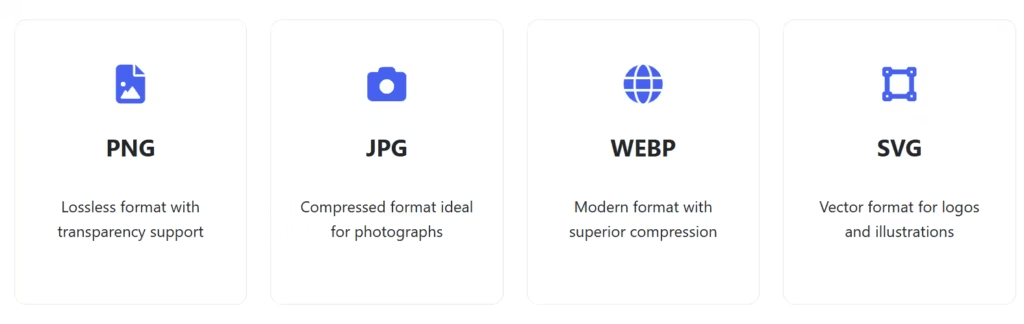
PNG
PNG is a lossless image format that supports transparency. It’s ideal for graphics, logos, and images that require a transparent background.
JPG
JPG uses lossy compression, making it perfect for photographs. It offers good quality with smaller file sizes, but doesn’t support transparency.
WEBP
WEBP provides superior compression compared to PNG and JPG, resulting in smaller files with similar quality. It supports both lossy and lossless compression.
SVG
SVG is a vector format that scales without quality loss. Perfect for logos, icons, and simple illustrations. It’s resolution-independent and can be edited with code.
Comprehensive Guide: Image Converter PNG-JPG-WEBP-SVG Tool
Introduction to Image Conversion
In today’s digital landscape, images play a crucial role in web design, social media, and digital marketing. However, different platforms and use cases require specific image formats to ensure optimal performance, quality, and compatibility. This is where an Image Converter PNG-JPG-WEBP-SVG becomes an essential tool for designers, developers, and content creators.
Image conversion isn’t just about changing file extensions; it’s about optimizing visual content for specific purposes while maintaining quality and ensuring fast loading times. Whether you’re preparing images for your website, creating graphics for social media, or optimizing product photos for an e-commerce platform, having the right format can significantly impact user experience and performance metrics.
Why Image Format Matters
Understanding Different Image Formats
Each image format serves specific purposes and offers unique advantages:
PNG (Portable Network Graphics)
- Lossless compression format
- Supports transparency (alpha channel)
- Ideal for logos, graphics, and images requiring transparent backgrounds
- Larger file sizes compared to JPG
- Perfect for screenshots and digital art
JPG/JPEG (Joint Photographic Experts Group)
- Lossy compression format
- Excellent for photographs and complex images
- Smaller file sizes with adjustable quality
- No transparency support
- Universal compatibility across all platforms
WEBP (Web Picture Format)
- Modern format developed by Google
- Superior compression (25-35% smaller than PNG/JPG)
- Supports both lossy and lossless compression
- Transparency and animation capabilities
- Growing browser support
SVG (Scalable Vector Graphics)
- Vector-based format (XML-based)
- Infinitely scalable without quality loss
- Perfect for logos, icons, and simple illustrations
- Small file sizes for simple graphics
- Editable with code
Features of Our Image Converter Tool
1. Multi-Format Conversion
Our Image Converter PNG-JPG-WEBP-SVG supports bidirectional conversion between all major image formats. Convert PNG to JPG for smaller file sizes, JPG to WEBP for better compression, or any other combination based on your needs.
2. Batch Processing Capability
While our basic tool handles single conversions, the underlying technology supports batch processing for enterprise users, allowing conversion of multiple images simultaneously.
3. Quality Preservation
Advanced algorithms ensure that image quality is maintained during conversion, with minimal loss even when compressing to smaller file sizes.
4. Transparency Handling
Special attention is given to transparency channels when converting between formats that support transparency (PNG, WEBP, SVG) and those that don’t (JPG).
5. Metadata Preservation
The tool preserves important metadata during conversion, including EXIF data for photographs and copyright information.
6. Responsive Design
Fully responsive interface that works seamlessly across desktop, tablet, and mobile devices.
7. Security and Privacy
All conversions happen client-side in modern implementations, ensuring your images never leave your device without your permission.
8. Preview Functionality
Real-time preview of both original and converted images with detailed file information helps users make informed decisions.
Benefits of Using Our Image Converter
Improved Website Performance
- Reduce image file sizes by up to 70% with WEBP conversion
- Faster loading times improve user experience and SEO rankings
- Lower bandwidth consumption
Enhanced Compatibility
- Ensure images display correctly across all browsers and devices
- Meet specific platform requirements (social media, e-commerce, etc.)
- Future-proof your digital assets
Workflow Efficiency
- No need for multiple software applications
- Simple, intuitive interface reduces learning curve
- Quick conversions save valuable time
Cost Effectiveness
- Free to use with no hidden costs
- No software installation required
- Reduces need for expensive editing software
How to Use the Image Converter Tool
Step-by-Step Conversion Process
- Upload Your Image
- Drag and drop your image file into the upload area
- Or click to browse your device for the image
- Supported formats: PNG, JPG, WEBP, SVG
- Select Target Format
- Choose your desired output format
- View format-specific information and recommendations
- Consider your use case when selecting format
- Preview and Adjust
- View side-by-side comparison of original and converted images
- Check file size differences
- Ensure quality meets your requirements
- Download Converted Image
- Click download to save the converted image
- File automatically saves with correct extension
- Ready to use in your projects
Technical Specifications
Supported Conversions
- PNG to JPG, WEBP, SVG
- JPG to PNG, WEBP, SVG
- WEBP to PNG, JPG, SVG
- SVG to PNG, JPG, WEBP
Maximum File Size
- Standard version: 10MB per image
- Premium version: 50MB per image
Browser Compatibility
- Chrome 80+
- Firefox 75+
- Safari 13+
- Edge 80+
Output Quality Options
- High (minimal compression)
- Medium (balanced quality/size)
- Low (maximum compression)
Frequently Asked Questions (FAQ)
Q1: Is this Image Converter PNG-JPG-WEBP-SVG tool free to use?
A: Yes, our basic image conversion tool is completely free to use. We offer premium features for advanced users and enterprise clients, but the core conversion functionality remains free.
Q2: How does the conversion process affect image quality?
A: The impact on quality depends on the conversion direction:
- PNG to JPG: Some quality loss due to JPG’s lossy compression
- JPG to PNG: No additional quality loss (but file size may increase)
- Conversions to WEBP: Generally better quality at smaller file sizes
- SVG conversions: Rasterization may affect scalability
Q3: Can I convert multiple images at once?
A: Our basic web tool supports single image conversion. For batch processing, we offer a downloadable desktop version or API access for developers.
Q4: Are my images secure during conversion?
A: Absolutely. In our web implementation, conversions happen entirely in your browser. Your images never upload to our servers unless you explicitly choose cloud processing for large files.
Q5: Why would I convert PNG to JPG?
A: PNG to JPG conversion is useful when:
- You need smaller file sizes for web use
- Transparency isn’t required
- Uploading to platforms that prefer JPG format
- Storing large quantities of images where size matters
Q6: What’s the advantage of WEBP over other formats?
A: WEBP offers:
- 25-35% smaller file sizes than PNG/JPG
- Both lossy and lossless compression options
- Transparency support
- Animation capabilities
- Growing browser support (now over 95% globally)
Q7: Can I convert SVG to other formats without quality loss?
A: SVG is a vector format, while PNG/JPG/WEBP are raster formats. When converting SVG to raster formats, the image is “rasterized” at a specific resolution. For best results, set the output dimensions to match your intended display size.
Q8: What’s the difference between lossy and lossless compression?
A:
- Lossless: No quality loss, perfect reproduction (PNG, SVG)
- Lossy: Some quality loss for smaller file sizes (JPG, WEBP lossy)
- Choose based on your quality requirements vs. file size needs
Q9: How long does the conversion process take?
A: Conversion times vary by:
- Image size and complexity
- Source and target formats
- Your device’s processing power
- Most conversions complete in under 5 seconds
Q10: Can I use converted images commercially?
A: Yes, but you must ensure you have the rights to the original images. The conversion process doesn’t transfer or create new copyrights.
Q11: Why does my converted PNG file look different from the original?
A: This could be due to:
- Transparency handling (if converting from formats without transparency)
- Color profile conversions
- Compression artifacts
- Always preview before finalizing conversion
Q12: Is there a limit to how many images I can convert?
A: Our free web version has a daily limit of 20 conversions per IP address. Registered users get higher limits, and premium users have unlimited access.
Q13: What should I do if my conversion fails?
A: Common solutions include:
- Check file size limits
- Ensure the image isn’t corrupted
- Try a different browser
- Convert to a different format first
- Contact support for persistent issues
Q14: Can I convert RAW camera files?
A: Our tool focuses on web-optimized formats. For RAW files, we recommend using specialized photo editing software before converting to web formats.
Q15: How do I choose the right format for my needs?
A:
- Website photos: WEBP or JPG
- Logos with transparency: PNG or SVG
- Simple icons: SVG
- High-quality prints: PNG or high-quality JPG
- Animations: WEBP or GIF
Best Practices for Image Conversion
Optimization Tips
- Choose the Right Format
- Use PNG for graphics with transparency
- Use JPG for photographs
- Use WEBP for general web images
- Use SVG for logos and simple graphics
- Balance Quality and Size
- Aim for the smallest file size without noticeable quality loss
- Test different quality settings for each image
- Consider your audience’s likely connection speeds
- Maintain Aspect Ratios
- Always preserve original aspect ratios during conversion
- Use proper resizing techniques for dimension changes
- Keep Originals
- Always save original files before conversion
- Create a backup strategy for important images
- Test Across Devices
- Verify converted images look good on different screens
- Check loading times on various connection speeds
Advanced Features
API Access
For developers and businesses, we offer API access to integrate image conversion capabilities directly into applications and workflows.
Browser Extensions
Our browser extensions allow quick conversion of web images without leaving your browsing context.
Integration Options
- WordPress plugin version available
- CMS integrations for popular platforms
- Custom enterprise solutions
Industry Applications
Web Development
- Optimize website images for faster loading
- Create responsive image sets
- Generate favicons and app icons
E-commerce
- Product image optimization
- Thumbnail generation
- Format standardization across platforms
Digital Marketing
- Social media image preparation
- Email marketing asset optimization
- Advertisement creatives
Content Creation
- Blog post image optimization
- eBook and digital publication assets
- Presentation graphics
Future Developments
We’re continuously improving our Image Converter PNG-JPG-WEBP-SVG tool with:
- AI-powered optimization suggestions
- Automated format selection
- Enhanced batch processing
- Cloud storage integrations
- Advanced compression algorithms
Conclusion
The right image format can significantly impact your digital presence, affecting everything from page load times to user engagement. Our Image Converter PNG-JPG-WEBP-SVG tool provides a comprehensive solution for all your image conversion needs, combining ease of use with powerful functionality.
Whether you’re a casual user needing to convert a few images or a professional requiring regular format transformations, our tool offers the features and reliability you need. With continuous updates and a commitment to user satisfaction, we strive to be your go-to solution for image conversion tasks.
Remember that while tools make conversion easy, understanding the strengths and weaknesses of each format will help you make better decisions about your digital assets. Happy converting!
GST Calculator
More PDF Tools