PDF to JPG Converter
Convert PDF pages to high-quality JPG images - 100% client-side processing
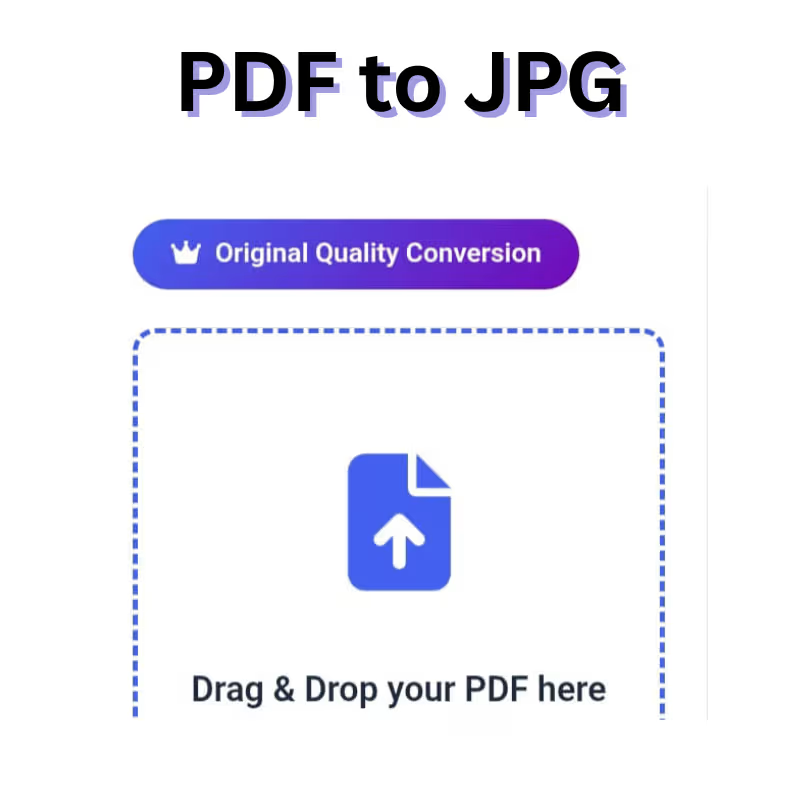
Drag & Drop your PDF here
or click to browse files
Max file size: 50 MB
About Conversion Quality
All PDF pages are converted to JPG images at their original quality and resolution. No quality loss during conversion.
PDF to JPG Converter: Complete User Manual & SEO Guide
1. Introduction to PDF to JPG Converter
What is PDF to JPG Converter?
The PDF to JPG Converter is a sophisticated web-based application that transforms Portable Document Format (PDF) files into JPEG images through entirely client-side processing. Unlike traditional converters that require file uploads to external servers, this innovative tool performs all conversion operations locally within the user’s browser, ensuring complete privacy and rapid processing speeds.
The Evolution of Document Conversion
Document conversion tools have become essential in our digital workflow. The transition from server-based processing to client-side conversion represents a significant advancement in web technology. This evolution addresses critical concerns about data privacy, processing speed, and accessibility. By leveraging modern web technologies like PDF.js and Canvas API, our converter delivers enterprise-level functionality without compromising user security.
Why Choose Client-Side Conversion?
- Complete Privacy: Your documents never leave your computer
- Lightning-Fast Processing: No waiting for server queues
- No Internet Dependency: Work offline after initial page load
- Zero Storage Concerns: No temporary files on external servers
- Unlimited Usage: No subscription fees or usage limits
2. Key Features & Benefits
Core Functionality
1. Original Quality Preservation
The converter maintains the original resolution and quality of PDF documents throughout the conversion process. Using advanced rendering techniques with high DPI settings, the tool ensures that text remains crisp and images retain their clarity in the resulting JPG files.
2. Multi-Page PDF Support
Comprehensive handling of multi-page documents allows users to convert entire PDF files into individual JPG images for each page. This feature is particularly valuable for:
- Converting presentations and reports
- Processing scanned document collections
- Creating image galleries from PDF catalogs
- Extracting specific pages from large documents
3. Batch Processing Capabilities
The tool efficiently processes documents of varying sizes and complexities, from single-page letters to complex 100+ page reports. Intelligent memory management ensures stable performance even with substantial documents.

User Experience Features
4. Intuitive Drag-and-Drop Interface
The modern user interface incorporates sophisticated drag-and-drop functionality with visual feedback:
- Clear hover states indicating active drop zones
- Animated transitions during file processing
- Immediate visual confirmation of successful uploads
- Support for both click-to-browse and drag-and-drop workflows
5. Real-Time Progress Tracking
Users receive comprehensive feedback throughout the conversion process:
- Visual progress bars with percentage completion
- Detailed status messages for each processing stage
- Estimated time remaining for larger documents
- Clear error reporting for problematic files
6. Flexible Output Options
Multiple download methods cater to different user needs:
- Individual image downloads for selective extraction
- Bulk ZIP archive creation for complete documents
- Organized file naming with page numbers
- Preservation of original file structure
Technical Advantages
7. Cross-Platform Compatibility
The converter functions seamlessly across all modern platforms:
- Desktop browsers (Chrome, Firefox, Safari, Edge)
- Mobile devices (iOS Safari, Android Chrome)
- Tablet interfaces with touch-optimized controls
- Progressive Web App capabilities
8. No Installation Requirements
As a pure web application, the converter requires:
- No software downloads or installations
- No browser extensions or plugins
- No system administrator privileges
- No ongoing updates or maintenance
3. System Requirements
Minimum Specifications
- Web Browser: Chrome 60+, Firefox 55+, Safari 12+, Edge 79+
- JavaScript: Must be enabled
- RAM: 2GB minimum, 4GB recommended for larger files
- Storage: Sufficient space for converted images
- Internet: Required for initial page load only
Optimal Performance Configuration
- Processor: Multi-core processor for faster rendering
- Memory: 8GB RAM for documents exceeding 50 pages
- Browser: Latest stable version with hardware acceleration
- Connection: Broadband internet for library loading
Supported File Specifications
- PDF Versions: 1.4 through 2.0
- File Size: Up to 50MB per document
- Page Count: Unlimited (subject to available memory)
- Content Types: Text, images, vector graphics, embedded fonts
4. Step-by-Step User Guide
Getting Started
Step 1: Accessing the Converter
Navigate to the PDF to JPG Converter web page using any modern browser. The interface loads immediately with clear visual cues and instructions.
Step 2: Understanding the Interface
Familiarize yourself with the main interface components:
- Upload Area: Central drag-and-drop zone with instructional text
- File Information Panel: Displays document details after upload
- Conversion Controls: Single-button conversion initiation
- Results Section: Grid layout for converted image previews
Conversion Process
Step 3: Document Upload
Method A: Drag-and-Drop
- Locate your PDF file in Windows Explorer, Finder, or your file manager
- Click and hold the file, then drag it over the upload area
- Release when the area highlights with a blue border
- Wait for file validation and information display
Method B: Traditional File Selection
- Click the “Browse Files” button
- Navigate to your PDF document in the file dialog
- Select the file and click “Open”
- Observe the file information panel updates
Step 4: Pre-Conversion Verification
Before initiating conversion, verify:
- Correct file name and size display
- Accurate page count recognition
- File type validation (PDF format)
- Size limitations compliance (under 50MB)
Step 5: Initiating Conversion
- Click the “Convert to JPG” button
- Observe the progress bar initialization
- Monitor status messages for each page
- Wait for completion notification
Post-Conversion Workflow
Step 6: Reviewing Results
The results section displays:
- Thumbnail previews of all converted pages
- Page numbers and file sizes for each image
- Download buttons for individual images
- Bulk download option for all images
Step 7: Downloading Images
Individual Downloads:
- Locate the desired page thumbnail
- Click the “Download” button below the preview
- Save the JPG file to your preferred location
- Repeat for additional pages as needed
Bulk Download:
- Click the “Download All as ZIP” button
- Wait for ZIP file generation
- Save the archive when prompted
- Extract contents using your preferred compression tool
5. Advanced Usage Tips
Workflow Optimization
Batch Processing Multiple Documents
While the converter processes one PDF at a time, you can streamline multiple conversions:
- Prepare all PDF files in a dedicated folder
- Process documents sequentially without closing the browser tab
- Maintain consistent naming conventions for output files
- Create separate folders for different conversion batches
Quality Assurance Practices
Ensure optimal conversion results through these practices:
- Verify source PDF quality before conversion
- Check image resolution requirements for your use case
- Test with sample pages before processing large documents
- Compare original and converted files for critical applications
Integration Strategies
Educational Applications
- Convert textbook excerpts for presentations
- Create image-based study materials
- Process scanned documents for accessibility
- Generate visual aids from PDF resources
Business Implementations
- Convert reports for inclusion in presentations
- Process invoices and receipts for digital archives
- Create marketing materials from PDF brochures
- Generate product images from catalog pages
Creative Uses
- Extract artwork from PDF portfolios
- Create social media content from PDF resources
- Generate website images from document layouts
- Prepare images for video presentations
6. Troubleshooting Guide
Common Issues and Solutions
Conversion Failures
Problem: Conversion process stops or fails to complete
Solutions:
- Refresh the browser page and restart the process
- Ensure adequate available memory by closing other tabs
- Verify PDF file integrity by opening in a PDF reader
- Try a different browser for compatibility testing
Quality Concerns
Problem: Converted images appear blurry or low resolution
Solutions:
- Check source PDF resolution and quality
- Ensure original PDF contains vector elements where possible
- Verify browser zoom settings are at 100%
- Test with a higher-quality source document
Performance Issues
Problem: Slow conversion or browser unresponsiveness
Solutions:
- Close unnecessary browser tabs and applications
- Process smaller documents or fewer pages at once
- Restart browser to clear temporary memory issues
- Update to the latest browser version
Error Messages and Interpretation
“Invalid File Type”
- Cause: Uploaded file is not a PDF document
- Solution: Verify file extension and format, convert to PDF if necessary
“File Size Exceeds Limit”
- Cause: PDF document larger than 50MB
- Solution: Compress PDF or split into smaller documents
“Conversion Timeout”
- Cause: Processing exceeds browser limitations
- Solution: Try with fewer pages or simpler document content
7. Technical Specifications
Architecture Overview
Frontend Technologies
- HTML5: Semantic markup structure
- CSS3: Modern styling with flexbox and grid
- JavaScript ES6+: Vanilla JavaScript with modern features
- Canvas API: For image rendering and manipulation
Core Libraries
- PDF.js: Mozilla’s PDF rendering engine
- JSZip: Client-side ZIP file creation
- FileSaver.js: Client-side file download handling
Performance Metrics
Conversion Speed Benchmarks
- 1-10 pages: 2-15 seconds
- 11-50 pages: 15-60 seconds
- 51-100 pages: 1-3 minutes
- 100+ pages: Performance varies by system capability
Memory Usage Patterns
- Base memory footprint: 50-100MB
- Additional memory: 5-10MB per page
- Peak usage during active conversion
- Automatic cleanup after process completion
Browser Compatibility Matrix
| Browser | Version | Support Level | Notes |
|---|---|---|---|
| Chrome | 60+ | Full | Optimal performance |
| Firefox | 55+ | Full | Excellent compatibility |
| Safari | 12+ | Full | macOS and iOS |
| Edge | 79+ | Full | Chromium-based |
| Opera | 50+ | Full | Chromium-based |
| Samsung Internet | 10+ | Full | Android devices |
8. Privacy & Security
Data Protection Guarantee
No Server Transmission
All file processing occurs within the user’s browser environment:
- PDF files never transmitted to external servers
- No temporary storage on remote systems
- Complete processing isolation from network
Local Processing Benefits
- Zero risk of data interception
- No privacy policy compliance concerns
- Elimination of data breach vulnerabilities
- Complete user control over file deletion
Security Implementation
File Handling Security
- Sandboxed browser environment execution
- No persistent local storage of sensitive data
- Automatic memory cleanup after processing
- Secure blob URL generation for downloads
Vulnerability Protection
- Regular security updates to core libraries
- Input validation for all user interactions
- Error handling without information leakage
- Cross-site scripting (XSS) protection
9. Future Enhancements
Planned Features
Advanced Conversion Options
- Customizable output resolutions
- Multiple format support (PNG, WebP)
- Selective page range conversion
- Background processing for large documents
User Experience Improvements
- Conversion history and recent files
- User preference persistence
- Advanced preview options
- Keyboard shortcut integration
Technology Roadmap
Performance Enhancements
- WebAssembly integration for faster processing
- Multi-threading support for parallel conversion
- Progressive rendering for immediate previews
- Caching mechanisms for repeated conversions
Integration Capabilities
- Cloud storage connectivity options
- API access for developers
- Browser extension development
- Progressive Web App (PWA) implementation
Conclusion
The PDF to JPG Converter represents the pinnacle of client-side document processing technology, offering users a powerful, private, and efficient solution for their conversion needs. With its commitment to original quality preservation, intuitive user experience, and robust technical foundation, this tool establishes new standards for web-based document processing.
As digital workflows continue to evolve, the converter’s client-side architecture positions it as the optimal solution for privacy-conscious users, professionals handling sensitive documents, and organizations requiring reliable conversion capabilities without external dependencies.
The comprehensive feature set, combined with ongoing development and enhancement plans, ensures that the PDF to JPG Converter will remain at the forefront of browser-based document processing technology, adapting to user needs and technological advancements while maintaining its core commitment to quality, privacy, and accessibility.